



Kimberly Paine is the first strategic general counsel at TRG Screen and its only lawyer. Before Aline, TRG’s order forms were drafted by hand: looked up in old contract files, copied and adjusted. As she puts it:
“There’s only one of [me], and too many of them. I can’t draft their order forms for them… This frees them up to focus on the work that actually matters – selling the value of TRG Screen and getting the deal closed.”
Kimberly Paine, General Counsel at TRG Screen

TRG’s team now generates order forms in Aline from Salesforce opportunity data. Plenty of sales teams still key deal terms in twice, once in Salesforce and again in the contract, and any field typed wrong in the contract no longer matches the deal.
Signed contracts have the opposite problem. Once a contract is signed, the terms that matter to sales and finance, like the renewal date, the notice period and whether it auto-renews, sit in a PDF. A rep who wants to know if a customer can be referenced in a case study has to find the contract, open it and read it, or ask legal.
The release on November 6 closes both gaps. Deal data from Salesforce custom objects now fills Aline templates, and terms Aline extracts from signed contracts can go back onto the deal record.
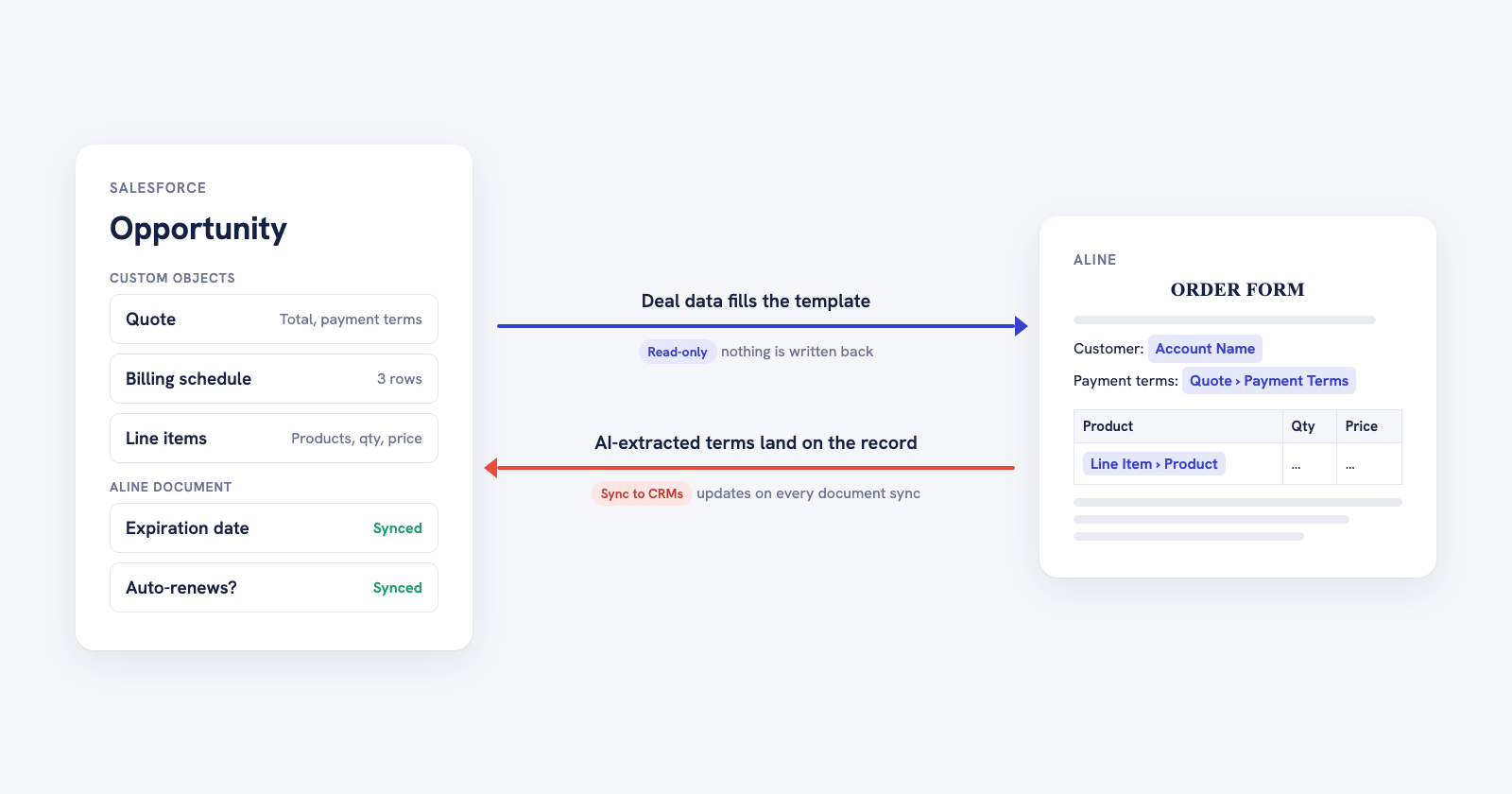
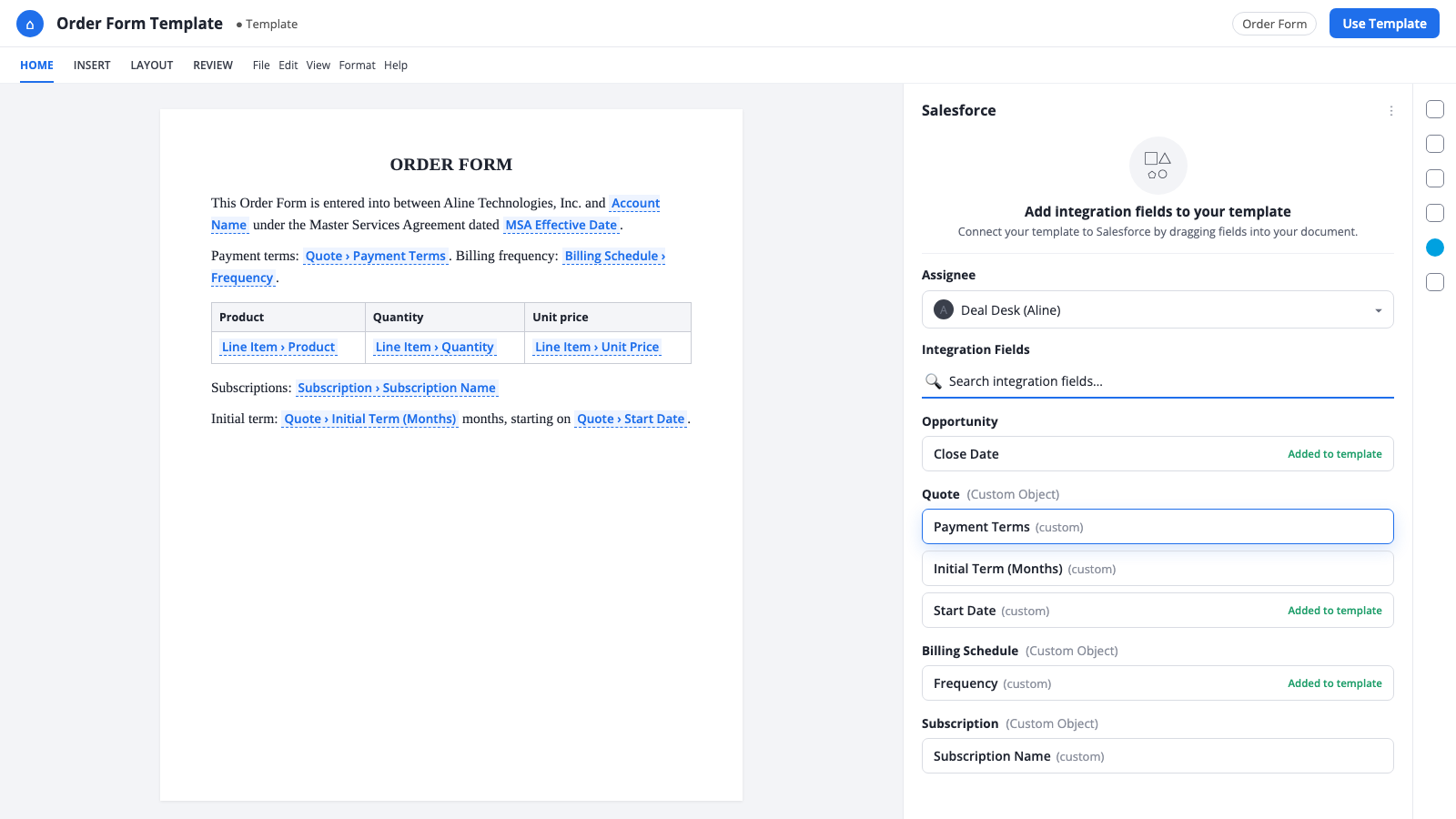
Aline already filled templates from standard Salesforce fields like Opportunity name, Account name and close date. Many teams keep their commercial terms somewhere else: quotes, billing schedules and subscriptions often sit in custom objects below the Opportunity.
Now, when a workflow is linked to an Opportunity or Account, its related custom objects show up in the template field picker under their own groups. Drag a field into the document and it fills in at launch.
| What happens | How it works |
|---|---|
| Custom object fields | Related custom objects on the linked Opportunity or Account appear in the field picker, grouped by object |
| Several related rows | When a deal has several rows for one object, like three subscriptions, a field can list every value comma-separated, or you can map it to one specific row |
| Line items and products | Deal line items and their products can fill an order form or pricing schedule when the workflow launches |
| Deleted records | If a linked record is deleted in Salesforce, the workflow keeps the link, marks the record as missing and asks you to link another one |
| Direction | Read-only. Aline reads values to fill the document and writes nothing back to these objects |
| HubSpot | Custom objects on HubSpot deals work the same way |
In practice this is contract generation from Salesforce data. A rep launches from the Opportunity and gets an order form with the quote, line items and billing schedule already filled in.
The same works on HubSpot. Adelaide Metrics fills its insertion order forms from HubSpot deal data, so sales doesn’t enter it by hand.
“The HubSpot integration, where it pulls the data directly onto our IO form, is very useful.”
Megha Wadhwani, Associate General Counsel at Adelaide Metrics

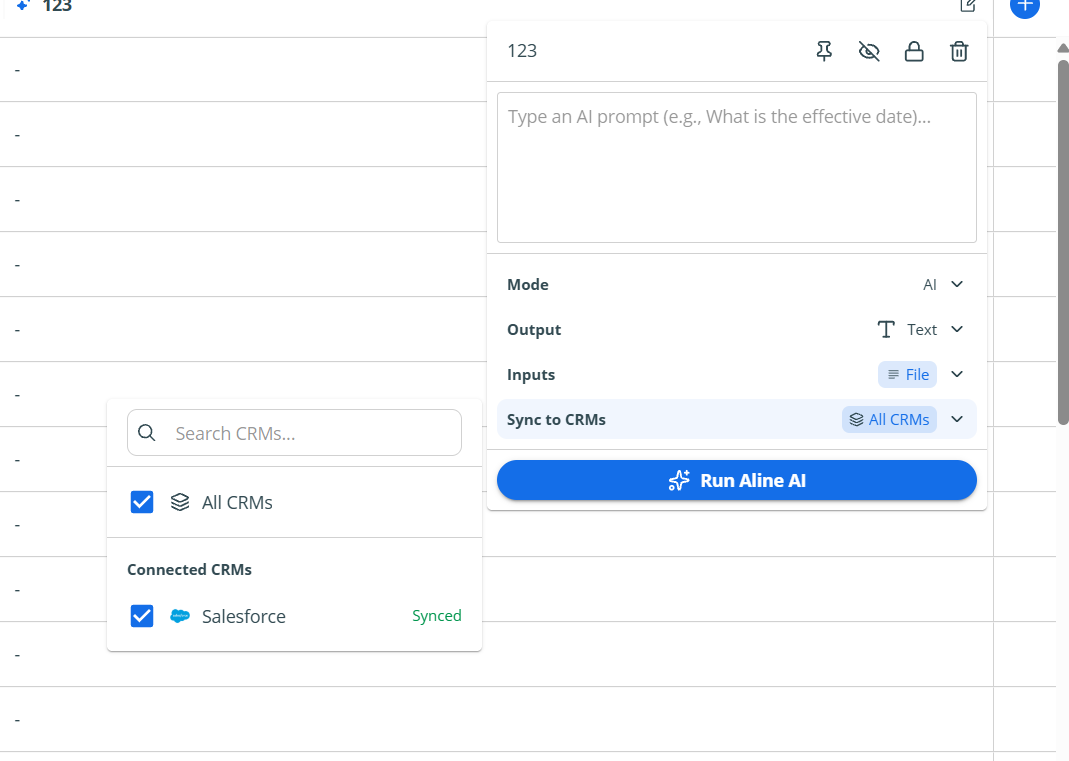
AI Properties are the questions Aline answers about every contract in a report: When does this expire? Does it auto-renew? Do we have logo rights? Admins can now send those answers to Salesforce or HubSpot.
Each Aline document becomes an Aline Document record in your CRM, linked to its Opportunity (or HubSpot Deal) and Account (or Company). When you sync a property, Aline creates a matching custom field on that object and fills it for every document in the report. After that:
Each column header shows whether its field is Synced, Needs access or Failed, with a Check again button. Only org admins can change sync settings. Everyone can see the status.
~15 min
typical setup time for the Aline Salesforce managed package, with no credentials to copy or paste. Aline writes a signing key into your org when an admin connects Salesforce.
Aline for Salesforce setup guide, November 2026

When a rep launches the template from an Opportunity, Aline shows a Review Fields form first. Editable Salesforce fields can be corrected inline before launch, read-only fields like Owner or Expected Revenue show their current value, and lookup fields show the record name, such as the Account name, instead of an ID.
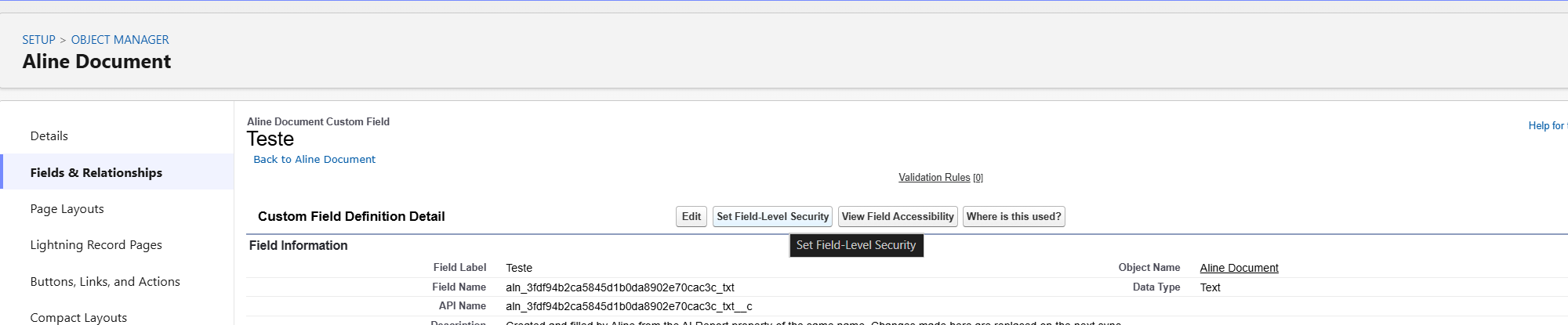
Each new property you sync needs the same field-level security step. Fields you’ve already set up keep working. In HubSpot, synced values show up on the Aline Document record in the Aline Synced Fields property group, with no extra permission step.
Here’s the full flow in about a minute:
These setups come from customer and prospect calls over the last few weeks:
| Setup | What it does | Who asked |
|---|---|---|
| Order form from the quote | Fills total, payment terms, payment method, activation date, auto-renewal, initial term, price and quantity from a quote custom object below the Opportunity, and leaves the discount out | Legal at a consumer subscription company |
| Multi-year pricing tables | Fills product, line item and start and end dates across up to five years of pricing on a renewal order form | Order-form team at a financial data software company |
| Exhibit A from a product object | Builds the product table from a one-to-many custom object on the HubSpot deal | Operations at an insurance company |
| Legal entity and NDA status on the account | Syncs the legal entity name and whether an NDA is signed, so deal desk stops checking contracts by hand | Legal at a data security company |
| Renewal red flags | Syncs where the price uplift clause sits and the governing law, so reps see them before a renewal call | Deal desk at a developer tools company |
The two features move data in opposite directions, and we built them that way on purpose.
Commercial terms start in Salesforce. Price, quantity, billing schedule and products are set by sales and used by finance for invoicing and revenue recognition. The contract should copy them and never become a second place to edit them. That’s why template data is read-only. A legal lead at a consumer subscription company put it this way on an onboarding call:
“I don’t want the legal document to not reflect what’s actually in the quote because the quote is the one that finance and revrec uses.”
Legal lead, consumer subscription company
If a number is wrong, fix it on the quote and regenerate. The Review Fields form lets a rep correct an editable field at launch, but the record in Salesforce is still the one finance reads.
Legal terms start in the signed contract. Governing law, the liability cap and logo rights get negotiated in redlines and end up in the final text. So when terms go back to Salesforce, Aline extracts them from that text with AI instead of copying template fields, which can be edited or deleted during negotiation, so the value on the deal record matches what both sides signed.
One caveat: pulling from Salesforce also pulls in whatever is messy there. One customer told us account names coming from Salesforce are right some of the time, so their team double-checks them. If your Opportunity data is inconsistent, clean the fields your templates use before you roll this out to reps.
Salesforce has a standard Contract object and sells a separate product, Salesforce Contracts, as part of its revenue lifecycle management line. Many teams use a dedicated contract lifecycle management (CLM) tool like Aline for drafting, redlining, approvals, e-signature and AI review, and connect it to Salesforce so deal data and contract terms stay in sync.
CLM stands for contract lifecycle management: creating, negotiating, approving, signing and tracking contracts. In a Salesforce setup, the CLM usually launches contracts from an Opportunity and reports contract terms back to the account or deal.
Aline can. Pick any AI property in an Aline report and turn on Sync to CRMs. Aline creates a custom field on the Aline Document object in Salesforce, links each document to its Opportunity and Account, and updates the value every time the document syncs.
No. Values from Salesforce objects are read to fill the document and nothing is written back to those objects. The only data Aline sends to Salesforce is the report properties you choose to sync, on the Aline Document object.
Yes, for two steps: installing the managed package and granting field-level security on each synced field. Everything else, like connecting Salesforce, mapping fields and choosing which properties to sync, is done by an Aline admin.
Yes. HubSpot custom objects on deals fill templates the same way, and synced properties appear in the Aline Synced Fields group on the Aline Document record.
Both features are part of Aline’s CRM integration for Salesforce and HubSpot, and they’re live in every Aline workspace. The setup steps are in the help center:
Moving off another CLM? See how Aline compares with Ironclad and LinkSquares. The same release also lets you import AI Skills from GitHub.
If you’re not on Aline yet, start a free trial, no credit card required, or book a demo and get 2 months free.